• Skip to primary navigation
  • Skip to main content
  • Skip to primary sidebar

QTOOTH

News & Reviews for Living with Bluetooth Wireless

  • Reviews
    • Wearable
    • Gaming
    • Health & Fitness
    • Home & Office
  • How To Tips
  • Industry News
  • About QTOOTH

QTOOTH

Polar Stride Sensor Bluetooth Smart for iPhone 5 and 4S

2013-07-13

polar-smart-stride-sensor-qtooth

One of the the world’s first, the Polar Stride Sensor Bluetooth Smart connects directly to iPhone 5 or 4S to deliver speed, distance and run cadence. The sensor provides all the data needed for running with the exception of heart rate and you can add a Polar H7 heart rate monitor to receive that data. A great way to realize the full potential of the Smart Stride Sensor is to pair it with the Polar H7 Bluetooth Smart Heart Rate Sensor, an armband for iPhone and a tube of heart rate monitor electrode cream.

polar-smart-stride-sensor-product-qtooth

The Polar Stride Sensor Bluetooth Smart comes with a Polar S3+ Stride Holder that threads directly into the show laces. It is worth having a couple of these if you have more than one pair of running shoes so you don’t have to re-thread the pod, simply move it from holder to holder.

The Polar Bluetooth Stride Sensor also has a user changeable battery and complete stride sensor calibration instructions are available on the Polar website.

For folks that bring an iPhone 5 or 4S with them for exercise, or have to have it for work, this is a good solution. Competitive runners will be much more apt to stick with GPS watches.

[amzn_product_inline asin=’B00CCASIMS’]

[amzn_product_inline asin=’B007S088F4′]

[amzn_product_inline asin=’B00CELI5HI’]

Filed Under: Featured Content, Health & Fitness, News, Reviews, Wearable

Twine: The Wireless Sensor That Monitors Your Life and Alerts You – Wherever You Are

2013-07-12

So here’s the scenario:
You’re at work, on vacation, goofing off on holiday… but you have that nagging feeling that the relentless rainstorms back home might be finally adding up to enough to flood your basement. Again. Although you can’t see it, things are happening pretty much exactly as you fear is starting to look like this:

Twine Monitoring System - QTOOTH

Not so bad you think? EXACTLY! It’s just starting to come into the basement. Luckily you have a Twine wireless sensor unit ready to detect the state of things and it sends you a lovely notification through text, email, tweet, etc… Like so:

TWine Sensor Alert on iPhone - QTOOTH

Now you can call your family, neighbors, house-sitter, handyman, and make sure things are taken care of BEFORE there’s any real damage from an otherwise avoidable disaster. But wait! The Twine is capable of doing a lot more. And if you are really clever, and one of those home inventor/creative-types, you’re pretty much only limited by your imagination. Here’s the lowdown for Twines own site:

Listen to your home, wherever you are.

Twine alerts you to small problems before they become big problems. Quick Wi-Fi setup and AAA batteries that last up to 3 months let you drop Twine anywhere you want to monitor temperature, vibration and orientation. Additional wired sensors detect floods, leaks, opened doors, and signals from your other home systems. Tell a web app what to listen to with simple rules, and you’ll get notifications and peace of mind via email, SMS, Twitter and more.

How it works

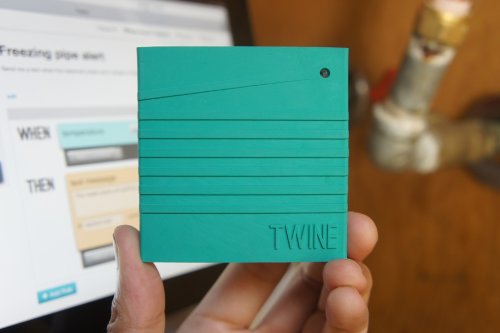
Twine is a wireless sensor block tightly integrated with a cloud-based service. The durable, rubbery block has Wi-Fi, on-board temperature and orientation sensors, and an expansion connector for other sensors. Power is supplied by micro USB or two AAA batteries that will run for up to 3 months (and Twine will email you when you need to change the batteries).

twine-screenshot-qtoothThe Twine web app makes it simple to set up and monitor your Twines from a browser anywhere. You set rules to trigger messages — no programming needed. The rules are put together with a palette of available conditions and actions, and read like normal sentences: WHEN moisture sensor gets wet THEN text “The basement is flooding!”

Because the hardware and software are made for each other, setup is easy. There’s nothing to install — just point Twine to your Wi-Fi network. Sensors are immediately recognized by the web app when you plug them in, and it reflects what the sensors see in real time, which makes understanding and testing your rules easy.

Listen to your world

Talk to the Web

Out of the box, Twine has several internal sensors.

Temperature

Measure the temperature. Are your pipes freezing? Is your air conditioning broken? Is it nice up by the lake today?

Vibration

Sense when Twine starts or stops shaking, with adjustable sensitivity. Know when your laundry’s done, your sump pump starts, or someone’s knocking at the door.

Orientation

Sense which side of Twine is facing up. Trigger actions by flipping Twine over, or detect when the garage or the oven is left opened.

Plug in additional external sensors and they pop up on the web app, ready to use.

External temperature

Measure the temperature where your Twine can’t go. Make sure your freezer or refrigerator is working properly, your grain silo isn’t too hot, or that the weather outside is nice.

Magnetic switch

Triggered when a magnet is moved toward or away from it. Get notified when your door or window is opened, the mailbox is opened, or your dog goes outside.

Moisture sensor

Detect the presence of water. Know when your basement floods, when your AC’s drip pan is overflowing, or when it rained.

Breakout board

Plug in your own digital input without soldering. Terminals for signal, 3.3V power and ground are provided. Connect your doorbell, garage door or other electrical system.

Cloud Shield

The easiest way to make an Arduino talk to the Internet. Add Twine actions to your project, or use Arduino to build custom sensors for Twine.

Twine can contact you in a number of ways.

  • Email
  • Twitter
  • Text message *
  • Phone call (text-to-speech)*
  • HTTP GET and POST requests
  • Put your real-time Twine sensor information in Panic Status Board or your own webpage

* With optional paid account: $5/month for 100 text messages, $9/month for 200 text messages or voice calls.

via Supermechanical: Twine

twine-wireless-sensor-monitor-qtooth

These is one cool unit. We here at QTOOTH can’t wait to get our hands on one. I see these, or similar devices, becoming routine in many homes in the near future. Can you say, “Hey insurance company! How’s about a discount on our home or renter’s policy if we promise to run these?”

[amzn_product_inline asin=’B009YWTPNS’]

[amzn_product_inline asin=’B009YWTNFI’]

[amzn_product_inline asin=’B009YWTOF2′]

Filed Under: Featured Content, Home & Office, Mobile

7 Tips for Using EMF Protection to Lower Cell Phone Radiation Exposure

2013-07-11

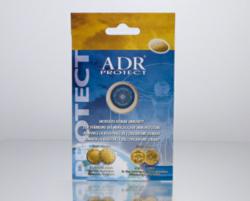
ADR Protect Anti-EMF for Cell Phones - QTOOTH

Here are 7 Tips for Lowering Cell Phone EMF Radiation Exposure. Why? Because modern electronic devices are an integral part of human life. These products release EMF pollution in the form of undesired and harmful electromagnetic waves that create numerous potential health risks. This “electro-smog” pollution emitted, especially from cell phones, may affect the functionality of various body organs, the immune system, energy and vitality. Moreover, EMF radiation exposure may also cause a number of illnesses including high blood pressure, unexplained headaches, electo sensitivity disorder, diabetes, lower vitality and even cancer. That’s why proven cell phone radiation protection products are becoming more and more important.

There are many products on the market that promise varieties of solutions and remedies to EMF and cell phone radiation exposure. In fact most of them rely mainly on graphics, marketing and sales techniques. In this current situation, a common sense approach for most consumers seems to be appropriate. Here is a list of most common steps for EMF and cell phone radiation protection.

7 cell phone tips for lowering EMF radiation exposure:

1: Keep your your cell phone from directly touching your head during phone conversations.

2: Use speaker phone while talking on the phone.

3: If possible limit the amount of talk time to 10 minutes.

4: Use Blue-tooth for longer conversations.

5: Keep your phone in your purse or cell phone case when not used to limit direct contact between the body and cell phone.

6: Try to only use your cell phone when the signal reception is strong (at least three bars) – the weaker the signal reception the stronger cell phone antenna has to work to maintain connectivity.

7: Use only credible EMF protection and cell phone radiation protection products.

According to World Health Organization reports cell phone radiation may deliver a negative impact on the human brain. ADR-Protect by AdrProVita is a registered medical device in the European Union and is supported by clinical and lab research results and international awards (Golden Medal Eureka Inventions, Brussels and Golden Medal INPEX Therapeutics, Pittsburgh).Although results from studies on the true level of impact on health vary, using EMF protection might be smart to do what we can to make the risk a non-issue.

[amzn_product_inline asin=’B00D8ADGTQ’]

[amzn_product_inline asin=’B00CNO82FQ’]

[amzn_product_inline asin=’B0006GRNGW’]

Filed Under: Health & Fitness, Mobile, Tech Talk

NuForce Introduces the BTR-100, a High-Fidelity Bluetooth Digital Receiver

2013-07-10

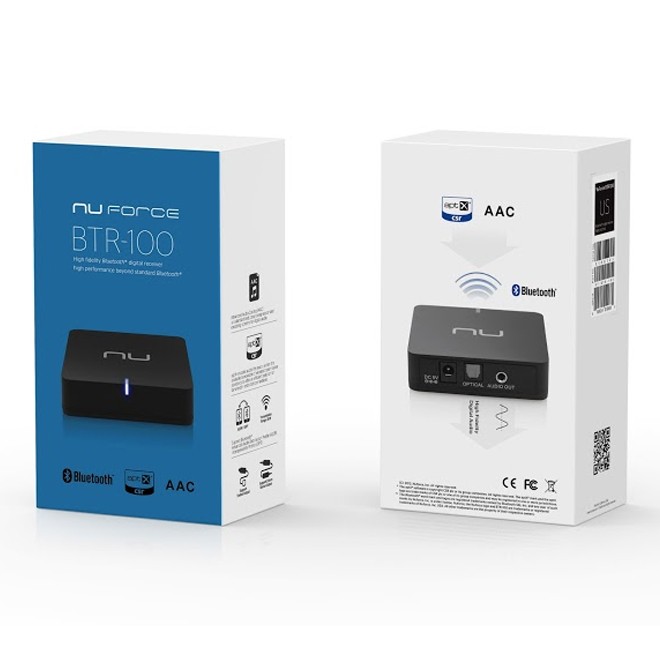
nuforce-btr-100-high-fidelity-bluetooth-digital-receiver-rear-panel-viewWith the NuForce BTR-100, users can stream CD quality digital audio directly to their high performance digital home stereo system.

NuForce, Inc., a leader in professional and consumer audio gear, introduces the BTR-100, a high-fidelity Bluetooth digital receiver that enables users to stream CD-quality audio directly to their home stereo systems. With their mass-market DACs and analog output stages, the majority of Bluetooth receivers achieve no more than mediocre audio performance. The BTR-100 delivers audiophile-grade fidelity via state-of-the-art aptX-enabled Bluetooth technology and direct optical connectivity, features that permit CD-quality audio to be streamed wirelessly to your NuForce digital integrated amplifier or other digital-input DAC/amp devices.

In those instances where the user prefers to connect directly to an analog amplifier or powered speakers, the BTR-100 also offers stereo analog outputs. Whatever connection you choose, with the BTR-100, you can be sure that your system will perform to the limits of its ability.

The [easyazon_link asin=”B00DUH4C8Q” locale=”US” new_window=”default” nofollow=”default” tag=”uneomediacom-20″ add_to_cart=”default” cloaking=”default” localization=”default” popups=”default”]Nuforce BTR-100[/easyazon_link], available worldwide at a suggested retail price of $69 USD.

nuforce-btr-100-high-fidelity-bluetooth-digital-receiver-box-view-qtoothBased in Fremont, California, NuForce first gained acclaim for its patented audiophile-grade Class-D power amplifiers, earning numerous awards from audio publications in the U.S. and Japan. Building upon its reputation as a company that develops state-of-the-art audio products, NuForce has worked diligently to expand its product line with digital-to-analog converters, in-ear and over-the-ear headphones, speakers and subwoofers, cables, additional home and headphone amplifiers, and other quality audio accessories. In every product and in every way, the NuForce brand offers superior engineering in designs of simple elegance.

Sold internationally, NuForce remains firmly committed to value and integrity in the production of high-performance consumer electronics adhering to stringent quality standards.

[easyazon_block add_to_cart=”default” align=”center” asin=”B00DUH4C8Q” cloaking=”default” layout=”left” localization=”default” locale=”US” nofollow=”default” new_window=”default” tag=”uneomediacom-20″]

[easyazon_block add_to_cart=”default” align=”center” asin=”B009POYA6C” cloaking=”default” layout=”left” localization=”default” locale=”US” nofollow=”default” new_window=”default” tag=”uneomediacom-20″]

[easyazon_block add_to_cart=”default” align=”center” asin=”B004E10KGU” cloaking=”default” layout=”left” localization=”default” locale=”US” nofollow=”default” new_window=”default” tag=”uneomediacom-20″]

Filed Under: Entertainment, Home & Office, Reviews

Wireless Fun with the Sphero iOS and Android App Controlled Robotic Ball

2013-07-09

Sphero Wireless App Controlled Robotic Ball - QTOOTH

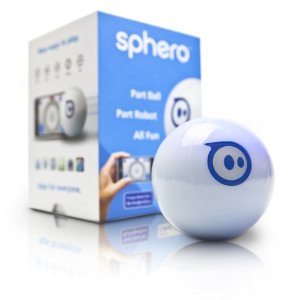
And now for a little bit of fun! Check out the Orbotix Sphero, the first robotic ball gaming device that you control with a tilt, touch, or swing from your smartphone or tablet. You can even use Sphero as a controller for on-screen gameplay. Sphero interacts seamlessly with mobile apps, giving you new ways to test your skills, play games with friends, or get inventive and co-op this for your own nefarious purposes. A Bluetooth connection makes Sphero ready to play as fast as you can launch an app. And with single- or multi-player games, there will be plenty of surprises.

Acclaimed by Popular Science, Forbes, Wall Street Journal, and MSNBC and featured as one of the year’s hottest gadgets by TechCrunch, Wired, Gizmodo, Engadget, and Make magazine, Sphero offers a new type of game play for the smartphone generation.

Sphero Android and iOS Robotic Ball - QTOOTH

A durable, impact-resistant polycarbonate shell allows for lasting gameplay. Easily operate the Sphero robotic ball from your smartphone or tablet’s touchscreen. Controlling from your mobile device is easy and intuitive–just tilt, gesture, or swing, and it responds. Because your experience changes with every new app you download, the entertainment never stops.

Playing with Sphero - QTOOTH

Sphero’s Bluetooth connection ensures control is always responsive and fluid, even at long ranges. You will be able to steer through homemade obstacle courses, weave it between feet, and even out-maneuver your family pet.

Sphero Game Play - QTOOTH

Sphero immerses you in a new type of gameplay called mixed-reality, in which real and virtual elements are seamlessly merged together. Several free apps are available for download (and more continuously being developed), providing you with plenty of gaming thrills.

Orbotix Sphero App-Controlled Robotic Ball - QTOOTH

Standout apps include Sphero Drive, where you can choose from touchscreen interfaces like joystick, old-school RC control, and tilt mode to give you a variety of ways to test your skills and challenge friends. In a mixed-reality version of golf, you create a hole, then swing your phone to putt towards the hole. Think Sphero just rolls? Think again. Hold it in your hand, start up Chromo, and move Sphero to match colors and patterns as they appear on your screen.

Roughly the size of a baseball, Sphero is compact enough to slip into a bag or jacket pocket. The durable, impact-resistant polycarbonate shell allows for lasting gameplay. And with customizable colored LEDs, you can change color to suit your mood, play in the dark, or create a team color.

Sphero Changes Color with LEDs - QTOOTH

Sphero is extremely efficient. A single battery charge delivers over an hour of full-throttle play, thanks to cable-free induction charging. Sphero is compatible with a variety of mobile platforms, including iOS 4.0 or greater, Android 2.2, Android 2.3.3+, and Android 3.0+. Sphero also has an Open API (application program interface) for developers, which allows virtually anyone to program new games and apps for Sphero. The API is intuitive, so you will be able to use it whether you are a seasoned developer or a novice app programmer.

What’s in the Box? Sphero robotic ball, inductive charging base, quick-start card, and user’s manual.

Sphero Logo - QTOOTH

Free Apps Available via Download Include:

Sphero

Familiarize yourself with Sphero’s personality, give commands, and gain access to basic driving functions. See where you stand on leaderboards and achievements. Even discover new apps as they roll in.

Drive

Drive Sphero with joystick, tilt, or old-school remote controls. Create challenging courses, race against friends and family, or turn out the lights for a little night racing.

Golf

Sphero is the ball and your phone is the club. Create a “hole” then swing your phone or swipe a finger to hit. Challenge friends to a round of office golf, create your own course at home, or venture out and make your own course practically anywhere.

SpheroCam

Have fun with Sphero and never miss a funny moment. Use the built-in camera on your device to record video or take snapshots while you simultaneously drive it. Will your SpheroCam video go viral? Record, upload, and find out!

Draw N’ Drive

Use your finger to trace a shape or path on the screen and it will follow it before your eyes. Just give your smartphone or tablet a shake to clear the slate. Even make Sphero change colors as it rolls by using the integrated color wheel.

Chromo

Get ready to challenge your coordination and memory with the first app that lets you use it as a controller. Move Sphero to match the colors on your screen for an entirely new way to challenge yourself. You can choose from six different game modes.

MacroLab

Create easy, repeatable programs and macros. Arrange simple commands and settings in any combination you choose to let Sphero drive autonomously, follow unique patterns, and more, all while learning basic programming. Play your commands, save favorites, and even share them with friends. MacroLab makes programming easy and fun.

So we at QTOOTH say give it a whirl, it looks like fun!

[amzn_product_inline asin=’B0081J2LRC’]

[amzn_product_inline asin=’B008X0ACP2′]

[amzn_product_inline asin=’B007HZLLOK’]

Filed Under: Entertainment, Featured Content, Gaming, Reviews

11 Camera Tips for Your Samsung Galaxy S4

2013-07-09

Here are 11 camera tips for the Samsung Galaxy S4 that are easy to follow The great quality of the Galaxy’s S4 camera is well known. However, most owner’s of the popular smartphone probably aren’t taking full advantage of its capabilities. These tips come straight from the folks at Samsung who have a vested interest in making sure you are able to get the most out of their products with the least amount of effort. Check’em out:

Use Shooting Modes to Create Perfect Photos

Twelve automatic Shooting Modes on an easy-to-use interface allow you to quickly adapt to the situation and perfectly capture the moment. When taking a close-up portrait, use Beauty Face mode to automatically clear blemishes for perfect results. Or, for a group shot, use Best Face mode to select each person’s best look from up to five consecutive images and merge them into one dazzling ensemble. You can refer to the descriptions in carousel display mode to help you choose the right one for your photo.

Put Yourself in the Shot

Eliminate the need to ask a passerby to take your family portrait on vacation. In addition to the 13-megapixel rear-facing camera, the Galaxy S 4 also features a 2-megapixel front-facing camera. In Dual Camera mode, both cameras function simultaneously to ensure the photographer is always included in your special moment. This also works for video in broadcast mode, so you can capture your reaction to all the action.

Capture the Drama in Every Frame

Imagine your child’s winning goal on the soccer field captured and dramatized moment by frozen moment. In Drama Shot mode you can take up to 100 shots in a short burst to freeze each instant. Then, choose the best sequence to capture the action in motion. Your child will be able to relive every step, giving the memory a life of its own.

Store Your Memories in Story Album

Make a book of your most cherished memories with Story Album. It allows you to organize a comprehensive and personalized album oriented around a specific event or time period like your child’s dance performance, last summer’s adventure or your baby’s first year. Once organized, you can sync in with the integrated Blurb photo book printing service to share a hard copy with your friends and family.

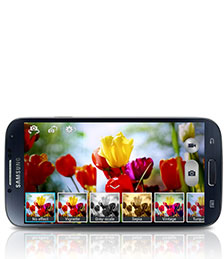
Get the Picture Right the First Time

Instead of taking the picture first and figuring out how to make it perfect later, use Live Filters to preview the outcome. With this dynamic capability, you can be sure your image will be cast in just the right light the first time, rather than guessing and hoping for the best—because some moments simply cannot be reproduced.

Clean Up the Scene

When your landmark subject is shrouded in the tourist crowd, you can use Eraser Shot to remove unwanted strangers who keeping walking into your perfect picture from your photo.

Bring Images to Life

Animate your dog’s proud and playful chase by streaming it into an animated GIF. With Animated Photo, you can catch all the action and keep every moment by sequencing a series of images for a quick playback at any time.

Showcase Your Favorite Moments

Collages are a fun way to show off your best pictures and capture the feel of an excursion like a day at the park or a weekend camping trip. Use Photo Collage to select the images you want to include and drag them around to create a fun snapshot of the event. Simply pick the photos in the gallery that you want to feature and select Photo Collage from the menu to create a snapshot of the event.

Capture Photos While Recording

Combine both the video and camera functions at once to capture the motion and still snag the perfect moment. You can record your daughter’s record-setting dive in its entirety and also snap a photo just before she enters the water with one simple touch during Video Capture.

Easily Share Your Best Photos

With Share Shot, you can immediately send the happiest moments, like your child’s graduation, to your friends and family nearby. When connected with Share Shot, as soon as you take the photo it automatically appears in the gallery of the connected devices. Share Shot uses Wi-Fi™ Direct, but you can also share via Bluetooth®, Email, Gmail™ and Messaging.

Control the Camera with Your Voice

Don’t fumble over trying to press the screen in the right spot when both hands are full. With Voice Commands, you can conveniently use your voice to control the camera while juggling the needs of the moment. When you know there are great shots coming, turn on voice commands with a single touch to simply say ‘cheese’ and take a picture.

via Samsung Mobile

We at QTOOTH hope you found these tips helpful!

Filed Under: How To Tips, Tech Talk

  • « Go to Previous Page
  • Page 1
  • Interim pages omitted …
  • Page 19
  • Page 20
  • Page 21
  • Page 22
  • Page 23
  • Interim pages omitted …
  • Page 29
  • Go to Next Page »

Primary Sidebar

Affiliate Disclosure

This website uses affiliate programs for monetization. At no additional cost to you, links to various sites mentioned in posts may result in a commission that is credited to this site if you make a purchase.

Some affiliate programs and affiliations include, but are not limited to, Commission Junction, Apple, Google, Amazon.com and more.

For complete details
click here.

Copyright © 2026 · Preferred Hosting by WP Engine and Domain Name Registry by Namecheap

We are using cookies to give you the best experience on our website.

You can find out more about which cookies we are using or switch them off in .

QTOOTH
Powered by  GDPR Cookie Compliance
Privacy Overview

This website uses cookies so that we can provide you with the best user experience possible. Cookie information is stored in your browser and performs functions such as recognising you when you return to our website and helping our team to understand which sections of the website you find most interesting and useful.

Strictly Necessary Cookies

Strictly Necessary Cookie should be enabled at all times so that we can save your preferences for cookie settings.

3rd Party Cookies

This website uses Google Analytics to collect anonymous information such as the number of visitors to the site, and the most popular pages.

Keeping this cookie enabled helps us to improve our website.

Additional Cookies

This website uses the following additional cookies:

(List the cookies that you are using on the website here.)