• Skip to primary navigation
  • Skip to main content
  • Skip to primary sidebar

QTOOTH

News & Reviews for Living with Bluetooth Wireless

  • Reviews
    • Wearable
    • Gaming
    • Health & Fitness
    • Home & Office
  • How To Tips
  • Industry News
  • About QTOOTH

How To Tips

Intel Posts Great Guide to the Internet of Things Infographic

2013-12-02

Intel recently posted this great guide to the Internet of Things infographic. It’s basically a snapshot of where the technology is right now, not only explaining what the term means but also demonstrates the many areas of our lives that are being affected by its development.

The basic concept of an Internet of Things, or IoT, is that “smart” technology is being put into millions of devices, from microscopic ones that can be embedded in other devices, or event he human body, to large scale machines and systems. This allows them to communicate and work with each other and with us. As the technology finds greater adoption and becomes part of our daily lives, we will have everything from our clothing to our cars to our appliances and environmental systems communicating over the internet.

It is a concept that is exploding in popularity. There are virtually limitless areas that can be developed for both industries and our personal lifestyles. It’s a time of the wild frontier and there is so much to be explored. The potential benefits of an Internet of Things are enormous.

There are a few links embedded in the original that we can’t replicate here but we have listed those links below the infographic here for convenience.

internet-of-things-infographic-intel-qtoothHere, in order of their appearance, are the links that are referred to within the graphic:

Video: The Smart World in 2020

Video: Big Data, Big Future for Retail

Link to Intelligent Systems Twitter: Weigh In On Mind Control

Link to Intelligent Systems Twitter: Weigh in Robots

Link to Intelligent Systems Twitter: Can’t All Our Things Just Get Along

Video: End On a Good Note with a Futuristic Computer Orchestra

And of course the original graphic on Intel’s website.


[amzn_product_inline asin=’B00DGEGJ02′]

[amzn_product_inline asin=’B00713RSE0′]

[amzn_product_inline asin=’B005ZA2W42′]

Filed Under: How To Tips, News, Tech Talk

Tips on How to Stop Mobile Text Spam

2013-08-20

How to Stop Text Spam - QTOOTHMobile text spam is on the rise. Bloomberg news reports that more than  4.5 billion spam text messages were received this past year, and that is just in the United States. This growing trend ends up costing carriers money and frustrating their subscribers who have to pay for the messages and deal with determining which of their texts are potentially fraudulent.

Here are some steps that you can take to help stop mobile text spam:

  1. Forward spam texts to your cell phone provider to “7726”. Verizon Wireless, AT&T Inc., T-Mobile USA and Sprint Nextel Corp. all support this service.
  2. Take advantage of the Do Not Call Registry at www.donotcall.gov. Register your phone number with them and this free service should make your phone number off limits to marketers within a month. If you are still receiving calls after that time, file a complaint against abuser on the same site.
  3. The most immediately effective thing to do is to adjust the settings on your cell phone provider’s website to block the specific numbers from which you are receiving spam.
  4. There are special apps specifically made to cope with this type of spam. “Mr. Number” for Android devices can block communication from unwanted numbers. There is also the McAfee Mobile Security app for Android, BlackBerry and Symbian comes with an SMS/text filter.
  5. And last but not least, call your cell phone provider’s customer service.

Some people may suggest replying to unwanted messages with the word “STOP”. Although some legitimate advertisers may respect this, most spammers could care less and will actually list your number as active and be MORE likely to text spam you in the future.

QTOOTH hopes these tips help. After all, the whole point of going wireless in this world is for less of a hassle, not more!

If you have any tips to share for stopping mobile text spam, please let us know in the comments below.

[amzn_product_inline asin=’B007FHX9OK’]

[amzn_product_inline asin=’B0043XZEEC’]

[amzn_product_inline asin=’B00BZD6QCW’]

Filed Under: Featured Content, How To Tips, News

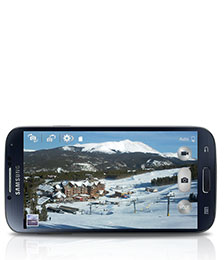
11 Camera Tips for Your Samsung Galaxy S4

2013-07-09

Here are 11 camera tips for the Samsung Galaxy S4 that are easy to follow The great quality of the Galaxy’s S4 camera is well known. However, most owner’s of the popular smartphone probably aren’t taking full advantage of its capabilities. These tips come straight from the folks at Samsung who have a vested interest in making sure you are able to get the most out of their products with the least amount of effort. Check’em out:

Use Shooting Modes to Create Perfect Photos

Twelve automatic Shooting Modes on an easy-to-use interface allow you to quickly adapt to the situation and perfectly capture the moment. When taking a close-up portrait, use Beauty Face mode to automatically clear blemishes for perfect results. Or, for a group shot, use Best Face mode to select each person’s best look from up to five consecutive images and merge them into one dazzling ensemble. You can refer to the descriptions in carousel display mode to help you choose the right one for your photo.

Put Yourself in the Shot

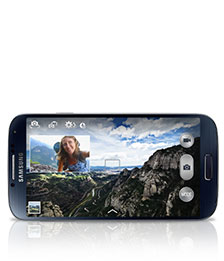
Eliminate the need to ask a passerby to take your family portrait on vacation. In addition to the 13-megapixel rear-facing camera, the Galaxy S 4 also features a 2-megapixel front-facing camera. In Dual Camera mode, both cameras function simultaneously to ensure the photographer is always included in your special moment. This also works for video in broadcast mode, so you can capture your reaction to all the action.

Capture the Drama in Every Frame

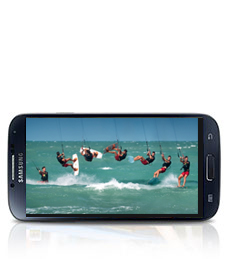
Imagine your child’s winning goal on the soccer field captured and dramatized moment by frozen moment. In Drama Shot mode you can take up to 100 shots in a short burst to freeze each instant. Then, choose the best sequence to capture the action in motion. Your child will be able to relive every step, giving the memory a life of its own.

Store Your Memories in Story Album

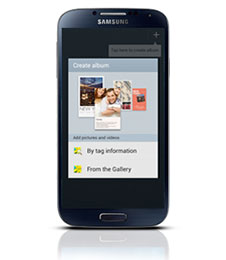
Make a book of your most cherished memories with Story Album. It allows you to organize a comprehensive and personalized album oriented around a specific event or time period like your child’s dance performance, last summer’s adventure or your baby’s first year. Once organized, you can sync in with the integrated Blurb photo book printing service to share a hard copy with your friends and family.

Get the Picture Right the First Time

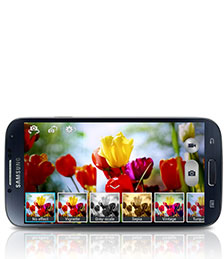
Instead of taking the picture first and figuring out how to make it perfect later, use Live Filters to preview the outcome. With this dynamic capability, you can be sure your image will be cast in just the right light the first time, rather than guessing and hoping for the best—because some moments simply cannot be reproduced.

Clean Up the Scene

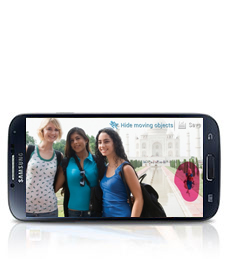
When your landmark subject is shrouded in the tourist crowd, you can use Eraser Shot to remove unwanted strangers who keeping walking into your perfect picture from your photo.

Bring Images to Life

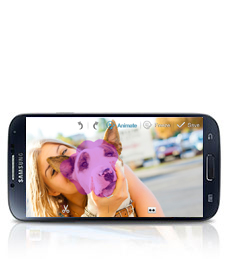
Animate your dog’s proud and playful chase by streaming it into an animated GIF. With Animated Photo, you can catch all the action and keep every moment by sequencing a series of images for a quick playback at any time.

Showcase Your Favorite Moments

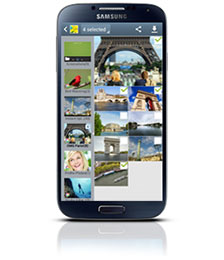
Collages are a fun way to show off your best pictures and capture the feel of an excursion like a day at the park or a weekend camping trip. Use Photo Collage to select the images you want to include and drag them around to create a fun snapshot of the event. Simply pick the photos in the gallery that you want to feature and select Photo Collage from the menu to create a snapshot of the event.

Capture Photos While Recording

Combine both the video and camera functions at once to capture the motion and still snag the perfect moment. You can record your daughter’s record-setting dive in its entirety and also snap a photo just before she enters the water with one simple touch during Video Capture.

Easily Share Your Best Photos

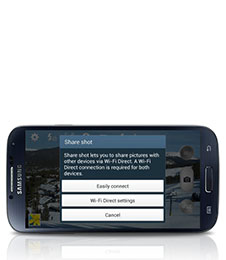
With Share Shot, you can immediately send the happiest moments, like your child’s graduation, to your friends and family nearby. When connected with Share Shot, as soon as you take the photo it automatically appears in the gallery of the connected devices. Share Shot uses Wi-Fi™ Direct, but you can also share via Bluetooth®, Email, Gmail™ and Messaging.

Control the Camera with Your Voice

Don’t fumble over trying to press the screen in the right spot when both hands are full. With Voice Commands, you can conveniently use your voice to control the camera while juggling the needs of the moment. When you know there are great shots coming, turn on voice commands with a single touch to simply say ‘cheese’ and take a picture.

via Samsung Mobile

We at QTOOTH hope you found these tips helpful!

Filed Under: How To Tips, Tech Talk

DIY Headphone Implant – Yes, Implant

2013-06-23

DIY Headphone Implant - QTOOTHSo here’s a bit of news from the human evolution frontier. Grinders, also known as biohackers, are people who identify with transhumanist and biopunk ideologies. Transhumanism is the belief that it is both possible and desirable to so fundamentally alter the human condition through the use of technologies as to inaugurate a superior post-human being. Sounds extreme? Maybe, maybe not. Think heart pacemakers or sub-dermal blood sugar management for diabetics. There are many examples of where modifying the human body is already routine. However, it is probably the DIY aspect of this following story that may make people ask, “Really?” Enjoy!

DIY Headphone Implant

By: Rich Lee
Published: June 24, 2013

This idea was completely inspired by @Saumanahaii ’s thread here:
http://discuss.biohack.me/discussion/252/subdermal-bone-conduction-headphoness#Item_32

First, the idea is based on this:
http://www.instructables.com/id/Make-Your-Invisible-Earphones/

The project is set up like this:
1. implant magnets
2. test implants with coil to make sure audio is picked up
3. implant coil/other parts w/transdermal jack & power charger

Having stuff like this done isn’t really the realm of doctors. Most Grinders rely on body modification artists to install their implants. I’ve had work done by the body modification master Steve Haworth in the past and have relied on him for advice on several project ideas. Steve instinctively knew the best way to go about the implantation in a way that would minimize chances for infection and would leave no scarring. The implant procedure itself went very smoothly and the pain was surprisingly minimal.

The first thing everyone asks is “why would you do this?” Honestly, I don’t feel the need to answer this question. People either get it or they don’t. I’m a Grinder, and we are notorious for getting it.

The second question is usually “what are you going to do with it?”

Listening to music is nice and probably the most obvious answer, but I intend to do some very creative things with it. The implant itself is completely undetectable to the naked eye. The device & coil necklace are are easily concealed under my shirt so nobody can really see it. I can see myself using it with the gps on my smartphone to navigate city streets on foot. I plan to hook it up to a directional mic of some sort (possibly disguised as a shirt button or something) so I can hear conversations across a room. Having a mic hooked up to it and routed through my phone would be handy. You could use a simple voice stress analysis app to detect when people might be lying to you. Not to say that is a hard science, but I’m sure it could come in handy at the poker table or to pre-screen business clients. I have a contact mic that allows you to hear through walls. That might be my next implant actually.

Tragus Headphone Implant - QTOOTH

I plan to hook this thing up to an ultrasonic rangefinder so that hums can be heard when objects get closer or further away. This will basically give you a sense of echolocation like a bat has. This could be really handy for blind people (many of whom use echolocation for navigation) since it will be audible only to them and doesn’t require making clicking noises with your mouth or using some other manual noisemaker. Echolocation is something I want to start practicing with now because I might be legally blind soon. I lost much of vision in my right eye overnight a few years back. I just woke up and couldn’t see well up close or far away. My other eye has compensated for the vision loss but the doc says the good eye can go at any time and when it does it will be very rapid. I’ll lose my drivers license, won’t be able to read, and glasses won’t correct the problem. Making money will be harder. A cornea transplant will be my only option and that is a bit out of my budget at the moment. So I figure learning to navigate with echolocation is a good thing to develop now, not that I’ve resigned myself to blindness or anything.

Beyond that, I’d love to hook a geiger counter up to it and experience the world or radiation. Living near the old Nevada nuclear testing grounds provides a lot of opportunity for this. I wouldn’t mind finding some yellow cake uranium while on a hike because that stuff is expensive. Hearing a gentle hiss around warm objects might be a novel way to experience the thermal realm. The implant is going to allow for a lot of new senses. Plugging new sensors into the jack will allow me to experience a lot of the world that is normally invisible. Well, it still might be invisible but now it will be audible. This new synesthesia of sorts is an exciting way to explore the world and develop new instincts about the way the world works around you.

I still have a lot of experimenting to do and a lot of things to troubleshoot. Several things impact sound quality and volume. First, the closer the coils move toward the implant, the louder the sound becomes. Pressing on my tragus and moving the implant closer to the eardrum likewise increases volume. A future implant will definitely be a coil very close to the existing implant. This should reduce my power consumption (I think). I’m also considering adding more magnets in other parts of the outer ear to see if that enhances the effects. It should. Bluetooth will be in a future version as well.

I have a hundred project ideas as well as plans for future implants. I can only do so many at once, but if people are welcome to design and ship me implants if they need a lab rat. I know a lot of hopeful lab rats actually.

###

Rich Lee is a Space Gangster, businessman, Grinder, and black hat transhumanist; he promotes tech piracy, biohacking, and committing Grand Theft Future. Contact Rich at megalorich @ gmail .com

[amzn_product_inline asin=’B0087RF5RG’]

[amzn_product_inline asin=’B003EM6AOG’]

[amzn_product_inline asin=’B003XU6H8I’]

Filed Under: Health & Fitness, How To Tips, News, Tech Talk, Wearable

Warning: iPhones Can Auto-Connect to Rogue Wi-Fi Networks

2013-06-20

Warning: iPhones can auto-connect to rogue Wi-Fi networks - QTOOTH

Security researchers say they’ve uncovered a weakness in some iPhones that makes it easier to force nearby users to connect to Wi-Fi networks that steal passwords or perform other nefarious deeds.

The weakness is contained in configuration settings installed by AT&T, Vodafone, and more than a dozen other carriers that give the phones voice and Internet services, according to a blog post published Wednesday. Settings for AT&T iPhones, for instance, frequently instruct the devices to automatically connect to a Wi-Fi network called attwifi when the signal becomes available. Carriers make the Wi-Fi signals available in public places as a service to help subscribers get Internet connections that are fast and reliable. Attackers can take advantage of this behavior by setting up their own rogue Wi-Fi networks with the same names and then collecting sensitive data as it passes through their routers.

“The takeaway is clear,” the researchers from mobile phone security provider Skycure wrote. “Setting up such Wi-Fi networks would initiate an automatic attack on nearby customers of the carrier, even if they are using an out-of-the-box iOS device that never connected to any Wi-Fi network.”

The researchers said they tested their hypothesis by setting up several Wi-Fi networks in public areas that used the same SSIDs as official carrier networks. During a test at a restaurant in Tel Aviv, Israel on Tuesday, 60 people connected to an imposter network in the first minute, Adi Sharabani, Skycure’s CEO and cofounder, told Ars in an e-mail. During a presentation on Wednesday at the International Cyber Security Conference, the Skycure researchers set up a network that 448 people connected to during a two-and-a-half-hour period. The researchers didn’t expose people to any attacks during the experiments; they just showed how easy it was for them to connect to networks without knowing they had no affiliation to the carrier.

Sharabani said the settings that cause AT&T iPhones to automatically connect to certain networks can be found in the device’s profile.mobileconfig file. It’s not clear if phones from other carriers also store their configurations in the same location or somewhere else.

“Moreover, even if you take another iOS device and put an AT&T sim in it, the network will be automatically defined, and you’ll get the same behavior,” he said. He said smartphones running Google’s Android operating system don’t behave the same way.

Once attackers have forced a device to connect to a rogue network, they can run exploit software that bypasses the secure sockets layer Web encryption. From there, attackers can perform man-in-the-middle (MitM) attacks that allow them to observe passwords in transit and even forge links and other content on the websites users are visiting.

The most effective way to prevent iPhones from connecting to networks without the user’s knowledge is to turn off Wi-Fi whenever it’s not needed. Apps are also available that give users control over what SSIDs an iPhone will and won’t connect to. It’s unclear how iPhones running the upcoming iOS 7 will behave. As Ars reported Monday, Apple’s newest OS will support the Wi-Fi Alliance’s Hotspot 2.0 specification, which is designed to allow devices to hop from one Wi-Fi hotspot to another.

Given how easy it for attackers to abuse Wi-Fi weaknesses, the Skycure research isn’t particularly shocking. Still, the ability of iPhones to connect to networks for the first time without requiring users to take explicit actions could be problematic, said Robert Graham, an independent security researcher who reviewed the Skycure blog post.

“A lot of apps still send stuff in the clear, and other apps don’t check the SSL certificate chain properly, meaning that Wi-Fi MitM is a huge problem,” said Graham, who is CEO of Errata Security. “That your phone comes pre-pwnable without your actions is a bad thing. Devices should come secure by default, not pwnable by default.”

via Ars Technica.

[amzn_product_inline asin=’B00C63PL62′]

[amzn_product_inline asin=’B00DV81YIA’]

[amzn_product_inline asin=’B00B8M4IMK’]

Filed Under: How To Tips, Mobile, News, Tech Talk

How to Pair a Cell Phone to a Bluetooth Headset: 6 Steps

2013-05-06

hx1OnEar

Pairing your new Bluetooth Headset with your Cell Phone is easy, if you can follow these simple steps.

  1. Gather and charge your cell phone and Bluetooth headset.
  2. Put your Bluetooth headset in “pairing mode”. For almost all headsets this is done by starting with the headset power off, then pressing and holding the multi-function button (the button you press to answer a call) for a few seconds. First, a light will blink showing you that the unit is on (keep holding the button) and a few seconds later, the LED on the headset will blink in alternating colors (often red-blue, but this can be anything really). The blinking lights indicate that the headset is in pairing mode.
  3. Use the cell phone to “find” the headset. Usually this is a setting in the menus of the phone, and it’s different for each phone. Most newer phones will have some kind of “Bluetooth setup” menu. Older phones may have this menu buried in the general phone settings.
  4. Provide a PIN code. When the phone “finds” the headset, it will ask for a PIN code. For 99% of headsets, this code is “0000”. Enter 0000 into the cell phone when prompted.
  5. Wait for a message. The phone and headset should connect and you should get a connection message on the phone. It should say something like “Hands Free Connection Established” or something along those lines.
  6. Finish up. That’s it! The headset and phone are now paired. The functionality on the headset will depend on the software and operation of the cell phone.

via How to Pair a Cell Phone to a Bluetooth Headset: 6 Steps.

Filed Under: How To Tips, News

Primary Sidebar

Affiliate Disclosure

This website uses affiliate programs for monetization. At no additional cost to you, links to various sites mentioned in posts may result in a commission that is credited to this site if you make a purchase.

Some affiliate programs and affiliations include, but are not limited to, Commission Junction, Apple, Google, Amazon.com and more.

For complete details
click here.

Copyright © 2026 · Preferred Hosting by WP Engine and Domain Name Registry by Namecheap

We are using cookies to give you the best experience on our website.

You can find out more about which cookies we are using or switch them off in .

QTOOTH
Powered by  GDPR Cookie Compliance
Privacy Overview

This website uses cookies so that we can provide you with the best user experience possible. Cookie information is stored in your browser and performs functions such as recognising you when you return to our website and helping our team to understand which sections of the website you find most interesting and useful.

Strictly Necessary Cookies

Strictly Necessary Cookie should be enabled at all times so that we can save your preferences for cookie settings.

3rd Party Cookies

This website uses Google Analytics to collect anonymous information such as the number of visitors to the site, and the most popular pages.

Keeping this cookie enabled helps us to improve our website.

Additional Cookies

This website uses the following additional cookies:

(List the cookies that you are using on the website here.)